
For an IDE tool, a smart, easy to use code editor is undoubtedly very important, NoSQLBooster gives you the best experience of code editing and script processing. Let you write less, do more.
True IntelliSense
We offer true IntelliSense experience. The built-in language service knows all possible completions, methods, properties, variables, keywords, even the MongoDB collection names, field names, and operators. The IntelliSense suggestions will pop up as you type. You can always manually trigger it with Ctrl-Shift-Space. Out of the box, Ctrl-Space, Alt-Space are acceptable triggers.

- Pressing F1 will take you to MongoDB online document as the cursor is over a valid MongoDB method.
Intelligently match typed text to enable completion beyond single words.

Tons of Snippets
We offer tons of built-in snippets to help you writing MongoDB shell script effectively. Typically, you only need to enter a few initial letters of the action, and you'll get the sample template code you need.
- Find, findByObjectId, findTextSearch, findWhereEq, Insert, Update, Delete ...
- SQL, SQL-GROUP-BY, SQL-JOIN, SQL-SUM, SQL-IN-SELECT ...
- Handy date range snippets, e.g. TodayDateRange, LastNWeeksDateRange, LastNMonthsDateRange ...
- Simplify complex MongoDB shell command, e.g. aggregate, createUser, rs.initiate ...
- If you come from a SQL background, these handy SQL to MongoDB conversion snippets may give you some help,
- Create your snippets by hitting F8

MongoDB Script Debugger
unique feature
Still debugging your MongoDB script with print statements? Now, you can use NoSQLBooster's built-in debugging capabilities to set breakpoints and step through code.
To start debugging, click the editor's text margin to set a breakpoint F9, and run with debugger F5. When your breakpoint is hit, you can explore the call stack, watch and edit variables, and interact directly with the debugger.
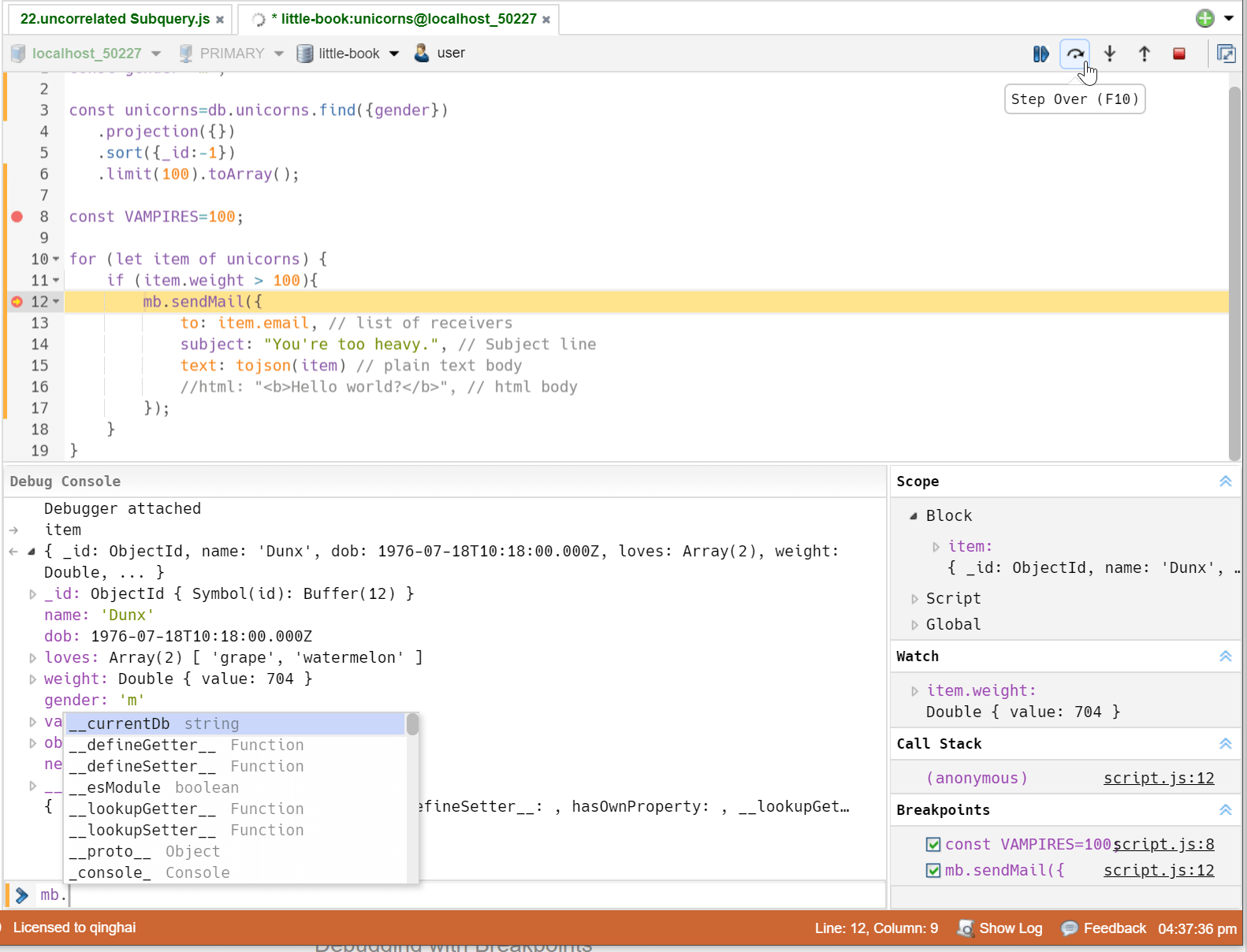
- Press F5 to start debugging, CTRL+↵|CTRL+F5 to run without debugging.
- Press F6 to run the current statement.
Query Code Generator
NoSQLBooster for MongoDB comes with query code generator that allows users to translate MongoDB queries (find, aggregate or SQL query) to various target languages: MongoDB Shell, JavaScript (Node.js), Java, C#, Python, PHP, Ruby and Golang.

Read-only Status-Lock
You do have full access to a production database, but usually, you don't want to change anything by mistake, you could use the read-only status lock. There are two ways to use it:
- Set an entire connection read-only, edit the config make it read-only
- Set any tab read-only temporarily, use the lock button on the tab toolbar
You could unlock temporarily of a locked config by using the unlock button too. The temporary lock/unlock only affects the current tab.

Visual Query Builder
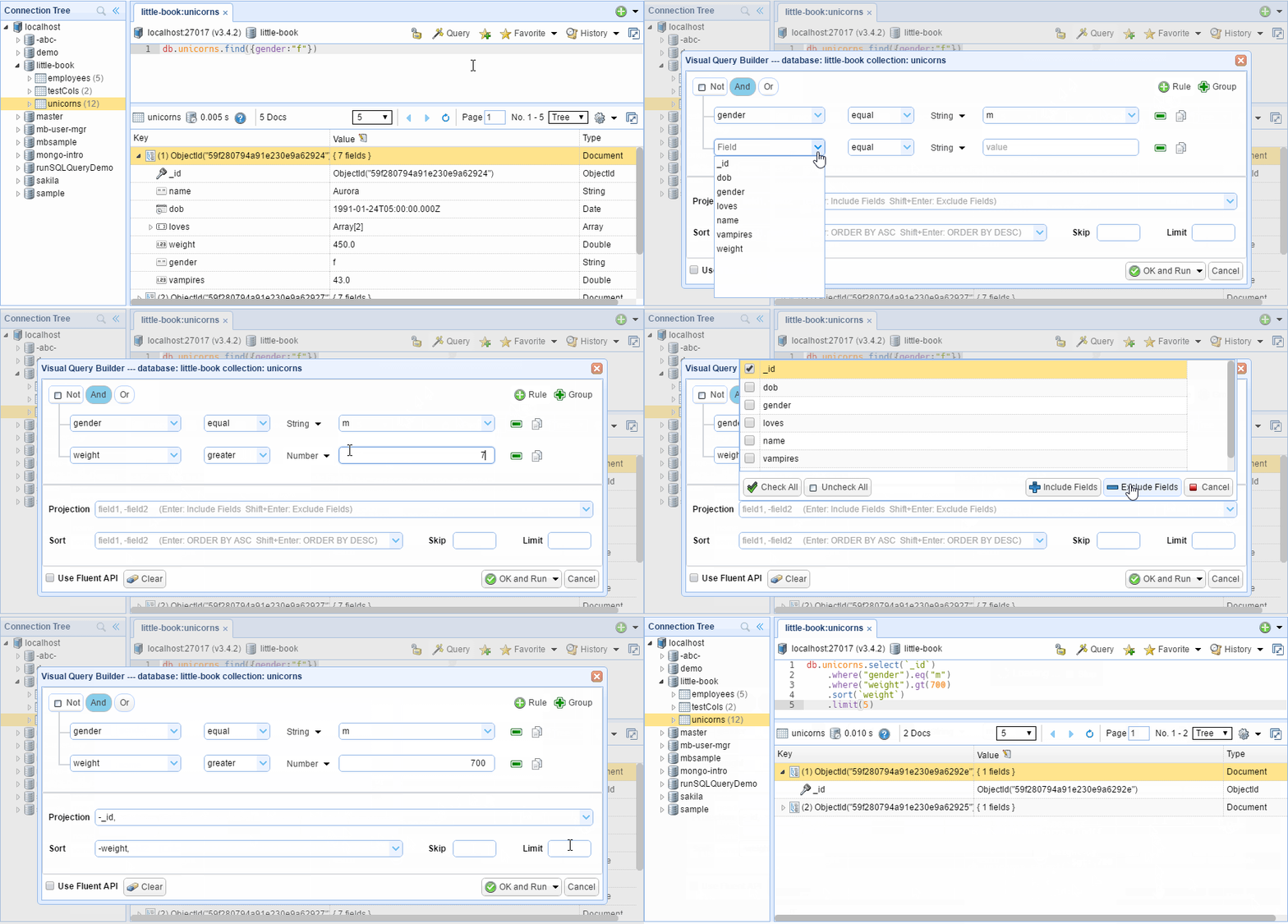
NoSQLBooster for MongoDB comes with a visual query builder. The two-way query builder could help you construct and display complex MongoDB find statements even without the knowledge of the MongoDB shell commands syntax.
History of Scripts
Press F7 to see the history of executed scripts and paste it into the editor. You also can use Ctrl-F7 to search script history.

ESNext Syntax Support
ESNext is a fantastic step forward for the JavaScript language. It lets us write dramatically more concise and readable MongoDB shell script, thanks to built-in support for block variable scoping, arrow functions, template strings, async/await, optional chaining, nullish coalescing and numerous other improvements to the language.
NoSQLBooster also has a simple tutorial for learning es6+.

Split an editor window
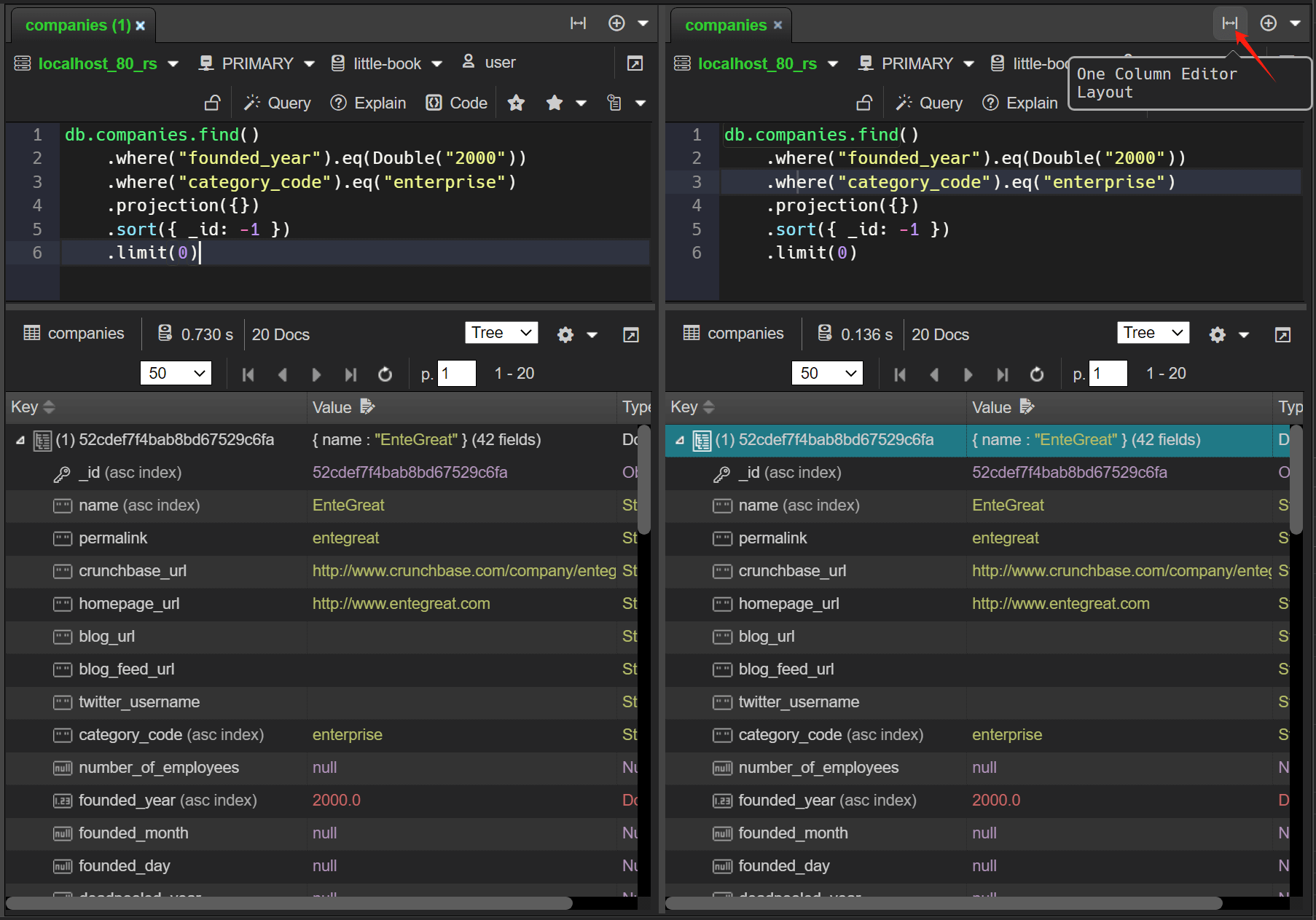
An instance of the editor window can be split into two separate views for easy editing and comparative viewing of query results.
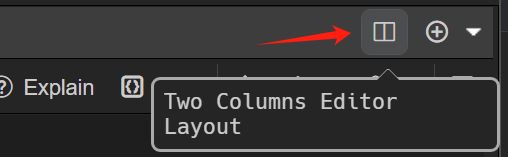
To split an editor, Click within the editor window to give it focus and click Two Columns Editor Layout button.
Rename symbol
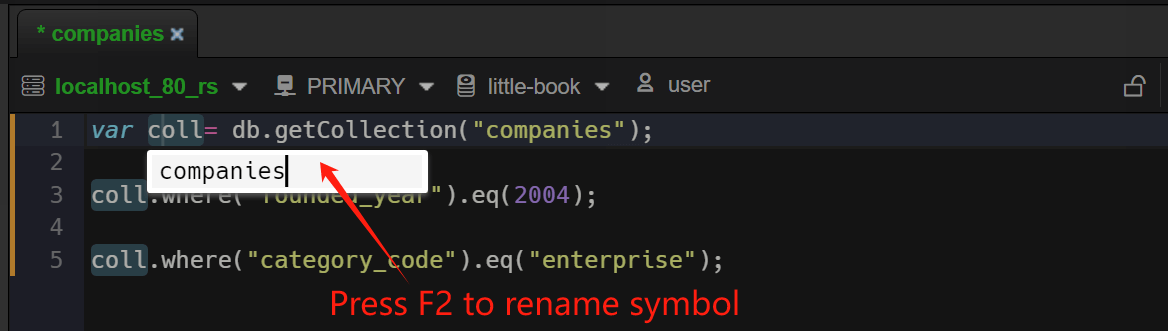
Renaming is a common operation associated with refactoring source code, and NoSQLBooster has added the Rename Symbol command (F2). Press F2, type the desired new name, and press Enter. All instances of symbols in this tab will be renamed.
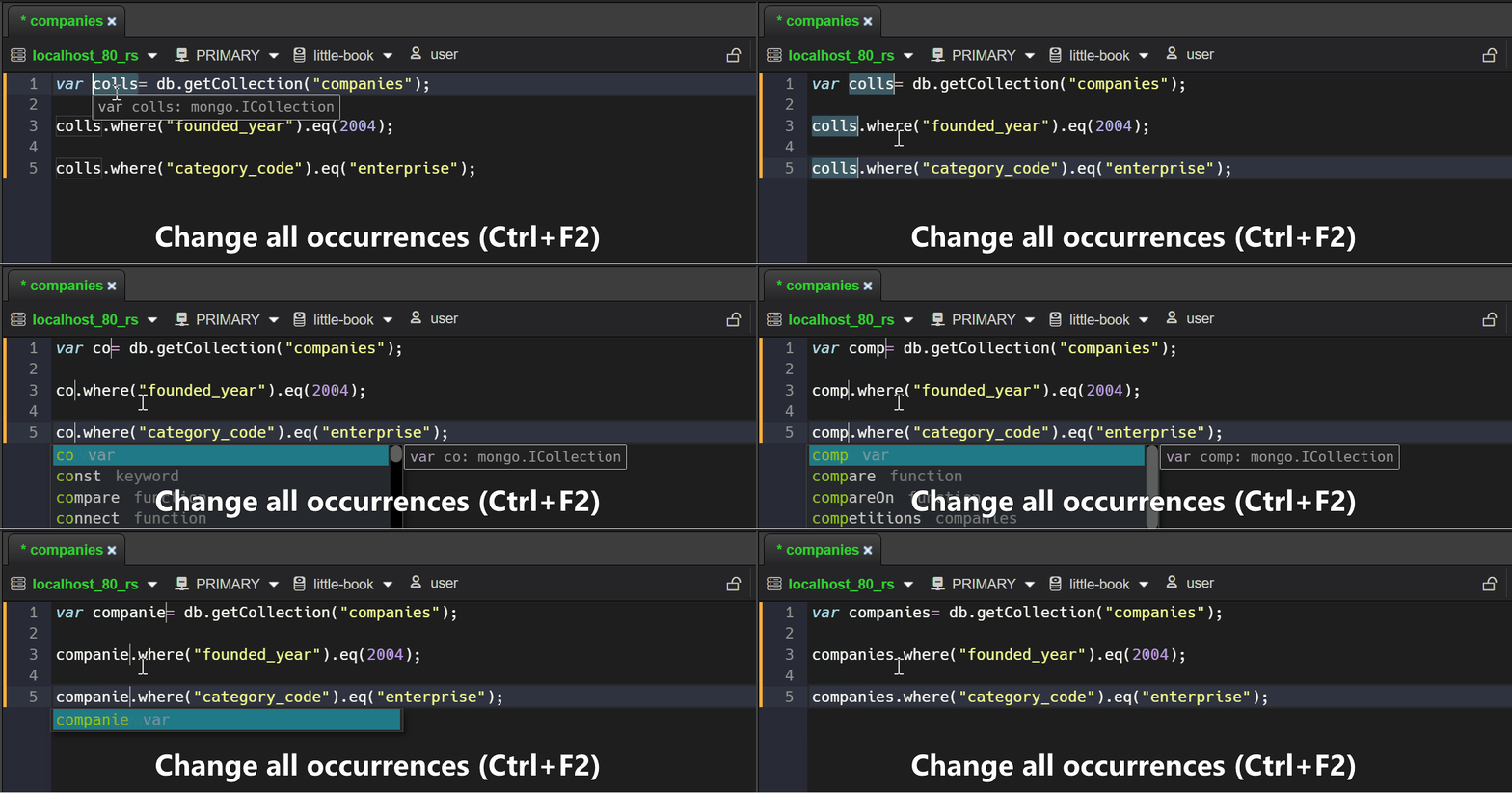
Change all occurrences
Let's say you've selected a word in your code and you want to find all its occurrences in the current file. You can do this by using the new Change All Occurrences command Ctrl+F2 keyboard shortcut. This will highlight all instances of the selected word, allowing you to edit them simultaneously.
Mark Changed Lines
The feature lets you see which lines have been changed since the last save operation, the new/modified lines are marked at the left margin.

On-the-fly Error Detection
The rich language services continually analyze your code in the background. All errors are reported right in the editor as you type, any line of code with a possible issue is marked in the editor gutter, so you can easily spot it.

Parameter Hints
In the script editor, parameter hints will pop up as you're typing a method invocation. You can navigate between different overloads with ↑ and ↓ and the best overload will be presented based on the arguments you pass in.

- Manually trigger it with Ctrl-Shift-Space, Ctrl-Space or Alt-Space.
Mouse Hover
The mouse hover will show much useful information, such as types of symbols, function definition, type information, and document.

Bracket Matching
Matching brackets will be highlighted as soon as the cursor is near one of them.
- Highlights and jumps between [], (), and {}.
- Auto-completes [], (), and {}, "" and ''.

- Go to matching bracket with Ctrl-P
- Select to matching bracket with Ctrl-Alt-P
Switch Connection and Database Within the Editor
Now, you can open and switch MongoDB connection within the editor, and you also can change the current database within the editor. It even allows you to view and run scripts without a database Connection. In this case, NoSQLBooster looks much like an ESNext playground which integrated Lodash, Shelljs, Moment.js and Node.js runtime.

Switch RS Member Within the Editor
You can directly connect and switch members of the replica set within the script editor.

Send MongoDB commands to multiple replica nodes
The replica member switcher now allows you to select multiple/all replica set nodes and send Mongo Shell commands to those nodes at the same time. The following example allows you to quickly view version information for MongoDB instances on all nodes in a replica set.
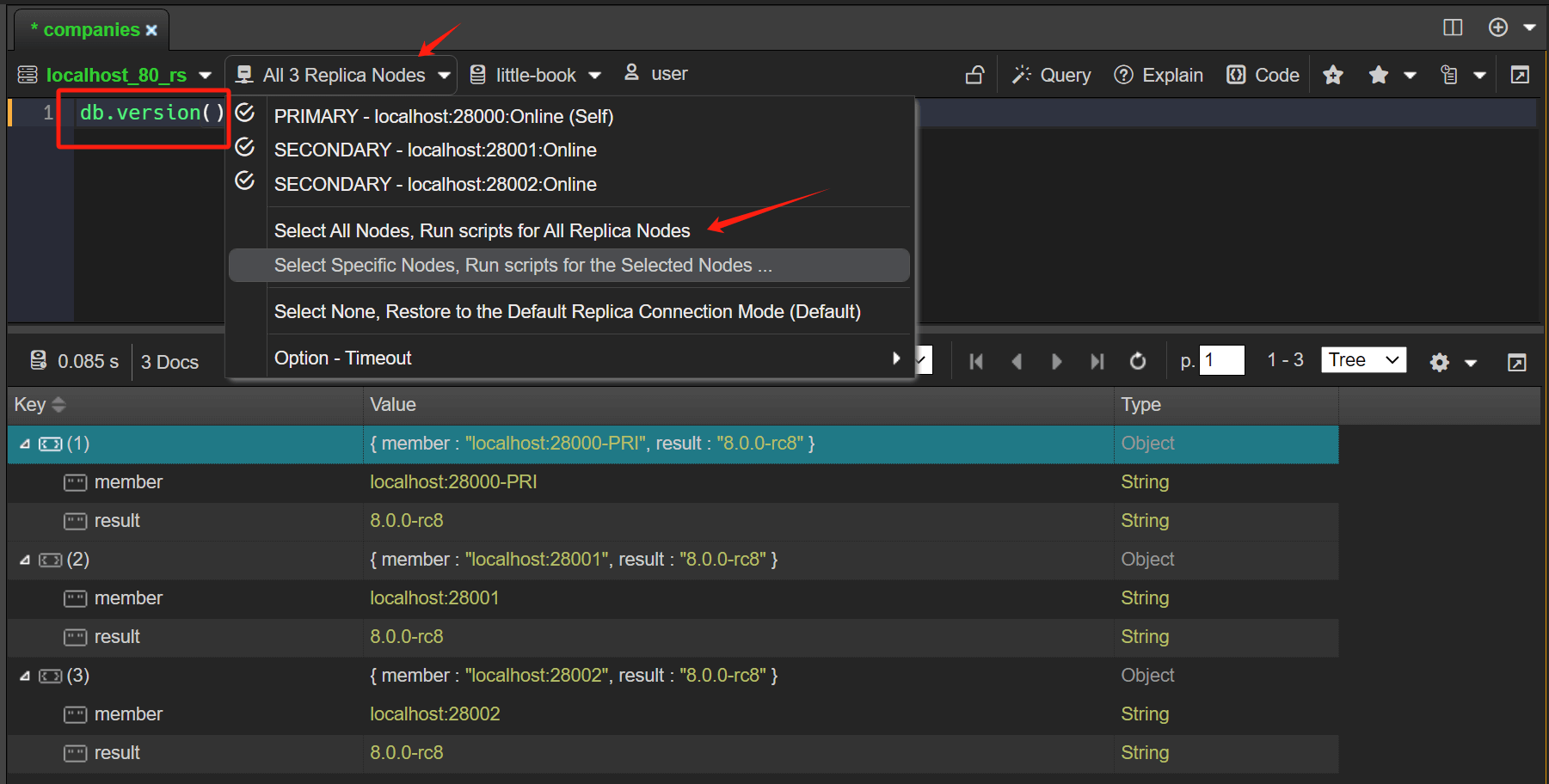
The commands executed are as follows
db.version()The result of the execution is aggregated into a JSON document, the member field indicates the node of the replica set, the primary node will add a PRI indication, if the node has a tag it will also be shown additionally, The result field is the result of the execution of the command on the node.
[{
    "member": "localhost:28000-PRI",
    "result": "8.0.0"
},
{
    "member": "localhost:28001",
    "result": "8.0.0"
},
{
    "member": "localhost:28002",
    "result": "8.0.0"
}
]
As you can see, the replica set is a primary node and two secondary nodes, all of which have MongoDB version 8.0 rc.
Text transformations
A new group of text transform commands has been added to the Editor Commands palette. For text conversion, select the text you want to convert, press Command+Shift+P to pop up the command palette, enter the conversion command (e.g. title case), then execute it.
- Transform to camel case
- Transform to kebab case
- Transform to snake case
- Transform to start case
- Transform to words
- Transform to title case
- Encode Base64
- Decode Base64
- Decode MongoDB URI
- Convert EJSON to mongosh Javascript Object
- Convert mongosh Javascript Object to EJSON
Editor themes
Now, we have 14 built-in editor themes to choose from, and you can apply the editor's theme through the editor's right-click menu. It may also be set through the main menu. Main Menu -> Options -> Editor Settings -> Themes

Send to External Tool
You can send the editor contents to the external editor associated with the system through the editor's right-click menu.

Notable Editor Features
- Syntax highlighting
- Automatic indent and outdent
- Search and replace with regular expressions
- Highlight matching parentheses
- Toggle between soft tabs and real tabs
- Display hidden characters
- Drag and drop text by using the mouse
- Line wrapping
- Code folding